A customer enters an email in your published Lovable app, sees User already registered, and still cannot reach the product through sign-in or password reset. Before you delete the account, check whether Auth recognizes the email and whether the app still has the profile, membership or access record linked to that user.
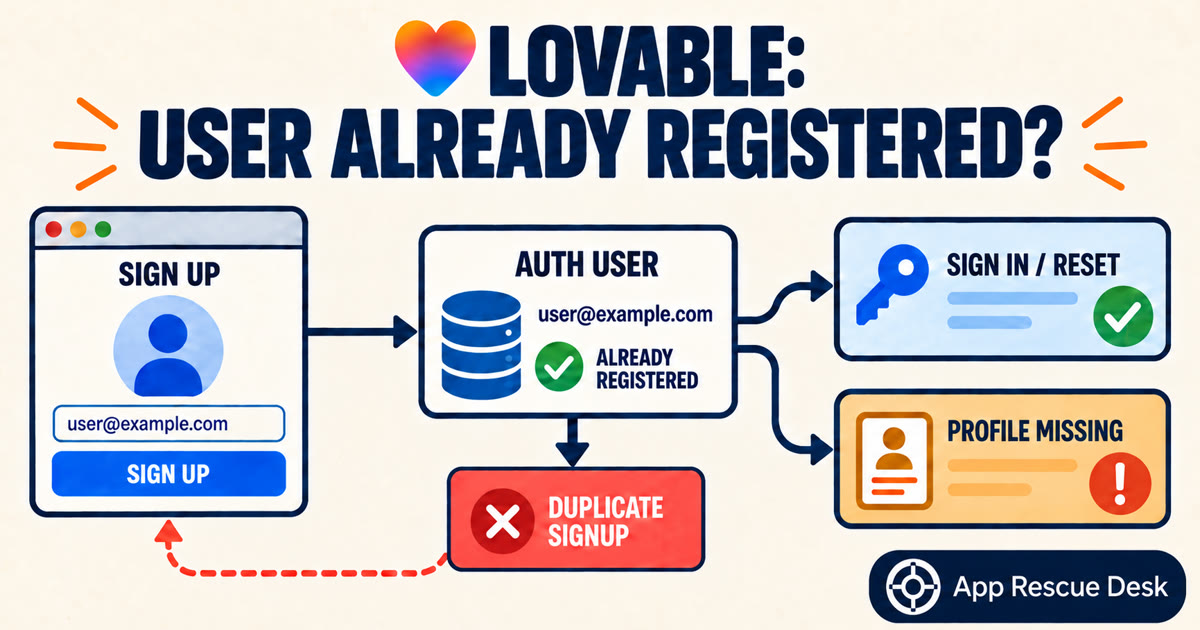
Start with an account you control: choose Sign in instead of Sign up, and use the normal password-reset flow only if needed. If the app opens with the expected access, the signup form needs a clearer route for existing users. If login works but the workspace, subscription or data is missing, the problem is in the account records, not the signup form.
Every platform claim below was checked against vendor documentation on 2026-10-14. App Rescue Desk is independent and is not affiliated with Lovable or Supabase.
Why does a published Lovable app say “User Already Registered”?
Supabase Auth rejects a new account when the email address or phone number already belongs to an Auth user. The documented error codes include user_already_exists and email_exists (Supabase Auth error codes). A Lovable app can show that API message directly or replace it with its own wording.
The message means that this signup request did not create a new Auth identity. It does not tell you whether the customer can sign in, has confirmed the email or still has access to the correct organization and paid features.
Public signup responses do not always reveal whether an account exists. Depending on the email-confirmation settings, Supabase can return an obfuscated response for a repeated signup instead of exposing a confirmed account (Supabase JavaScript signUp). Treat the visible text as a starting point. Record the response code, HTTP status and request path before changing the account.
What can the app owner check without deleting the user?
Use a test account or an affected account whose owner has authorized the check.
- Open the published app in a private browser window.
- Open the Network panel.
- Submit the signup form once.
- Record the request path, status, error code and timestamp.
- Remove cookies, tokens and passwords from the capture.
- Open the user list for the production backend.
- Search for the exact normalized email address.
- Record the user ID, confirmation state and last sign-in time.
For Lovable Cloud, open More → Cloud → Users. This view shows each user’s ID, signup time, last sign-in time and login methods (Lovable users and authentication). If the app uses your own Supabase account, open Authentication → Users in the production project.
Next, find the failed attempt in the authentication logs. Lovable Cloud keeps these events under More → Cloud → Logs, where you can filter by text, time and status (Lovable logs).
| What you find | What it supports | Next check |
|---|---|---|
| No Auth user with that email | The UI message and production user list disagree | Check which backend served the request |
| Auth user is unconfirmed | Account creation started but confirmation is incomplete | Test the confirmation flow |
| Confirmed Auth user has never signed in | The customer may be using signup for an existing account | Test sign-in or password reset |
| Auth user signs in but has no app access | Authentication works; account records are incomplete | Compare profile, membership and entitlement records |
| Several users fail after one release | The cause is broader than one forgotten password | Compare the release with auth and database logs |
Can sign-in or password reset resolve “User Already Registered”?
Sometimes. If the account already exists and the customer returned to the signup form, sign-in or password reset is the correct route.
Test this route with an account you control:
- Choose Sign in.
- Enter the existing account email.
- Use Forgot password if the password is unknown.
- Complete the reset from the same published domain.
- Confirm that the expected workspace and access level load.
Lovable’s email authentication flow includes signup, sign-in and password reset. When email confirmation is enabled, the user must confirm the address before the first sign-in (Lovable email authentication).
If the reset or confirmation email does not arrive, do not keep resending it. Capture the response first. An HTTP 429 with over_email_send_rate_limit points to the Supabase email rate-limit diagnosis, not the duplicate-user problem.
A password reset fixes only the credential. It confirms control of the Auth identity, but it cannot recreate a missing profile, organization membership, subscription or permission row.
Why can a Supabase Auth user exist without Lovable app access?
Authentication and product access do not come from the same record. Supabase stores the Auth user in the auth schema, while the app can keep profiles and product data in the public schema. Supabase recommends linking the public profile to the Auth user ID (Supabase user management).
The signup request can succeed even when a later database write fails. This is how an Auth user can exist without the profile or membership that grants product access. Other causes include:
- the app created the Auth user but a separate profile or membership write did not complete;
- a profile or membership was deleted while the Auth user remained;
- a migration copied the Auth user without every related record;
- an invitation linked the user to a different organization;
- a subscription or entitlement points to an old user ID;
- row-level security hides a valid record from the signed-in user.
Use the Auth user ID to compare the records. Do not match them by email alone. An email address can change, but database relationships use the Auth user ID.
Read the application tables before you edit them:
- Copy the affected Auth user ID.
- Find the matching profile row.
- Find the matching organization or workspace membership.
- Find the access or subscription record the product requires.
- Check the first denied database request after sign-in.
- Record the policy or constraint named in the matching log.
Do not insert a replacement profile until you know which fields and relationships the app requires. A guessed row makes the first failure harder to diagnose and can leave the account data inconsistent.
Can the published Lovable app use a different Auth project?
Yes. The published build can send Auth requests to a different Supabase project from the one open in your dashboard. The email can therefore exist in production even when you cannot find it in the project you are checking.
Open the failed request in the browser Network panel. Read its hostname. Compare the project reference with production, then compare the current deployment with the last working deployment.
If the request returns 401 Invalid API key, follow the Lovable and Supabase Invalid API Key checks. That error occurs before Supabase can process the signup request.
Do not copy production users into another project for this test. Correct the environment or project reference. Publish once, then repeat the flow with the same test account.
Should you delete the Supabase user and let the customer sign up again?
No. Deleting the Auth user first can make the repair harder. Application records can still refer to the old user ID, while the recreated account receives a new one. Memberships, files, subscriptions and audit history do not move to that new identity automatically.
While you diagnose the account, do not:
- delete the Auth user;
- edit the managed
auth.userstable by hand; - disable email confirmation for the whole project;
- create a second profile with the same email;
- assign paid access before you reconcile the original entitlement;
- ask the customer to repeat signup until it works.
If you need to remove the account, handle deletion as a separate task. It is not a shortcut for finding the original fault.
When does a Lovable duplicate-user error need technical repair?
If the customer only forgot a password or missed the confirmation email, the normal Auth flow can restore access. Technical repair is needed when sign-in works but the app still withholds the correct workspace, data or paid access.
Get technical help when:
- several customers hit the same loop;
- sign-in succeeds but the workspace or paid access is missing;
- the Auth user and application records disagree;
- the published app sends requests to the wrong backend;
- a trigger, row-level security policy or database constraint blocks access;
- multiple sign-in methods point to different identities;
- a manual change could affect billing, ownership or customer data.
The Lovable app fix service covers published apps that previously worked but now fail across authentication, account records or production configuration. Before changing production data, the repair follows one affected account from the browser request to the Auth user and its related records.
Frequently asked questions
Why does a published Lovable app show “User Already Registered” for a real customer?
The production backend already has an Auth user with that email address or phone number, or the app translated another existing-account response into the same message. Record the API code and check the production user list before changing the account.
Can a customer sign in after a Lovable app says “User Already Registered”?
Yes, if the Auth user is confirmed and the customer has the correct credential. Use sign-in or password reset, then check that the app loads the correct profile, workspace and access level.
Should I delete a Supabase Auth user to fix “User Already Registered” in Lovable?
No. A recreated user receives a new user ID, while profiles, memberships, files or subscriptions can remain attached to the old one. Find the missing relationship before you remove the account.
Why does the Supabase Auth user exist but the Lovable profile is missing?
The Auth user and application profile are separate records. An application write, migration or cleanup can update one without the other. Compare them by Auth user ID and check the original database error before inserting a profile.
Can the wrong Supabase project cause a Lovable “User Already Registered” error?
Yes. The published build can send the signup request to a different project from the one open in your dashboard. Compare the failed request hostname with the production project reference.
What evidence should I send for a Lovable signup failure?
Send the published URL, timestamp and timezone, request path, HTTP status, Auth error code, redacted response, deployment identifier, project reference and affected Auth user ID. Do not send passwords, access tokens, refresh tokens, cookies or customer records.