Zapier shows Soft timeout limit reached on the action that creates an invoice. The run ends with an error, but the billing app may already contain the invoice.
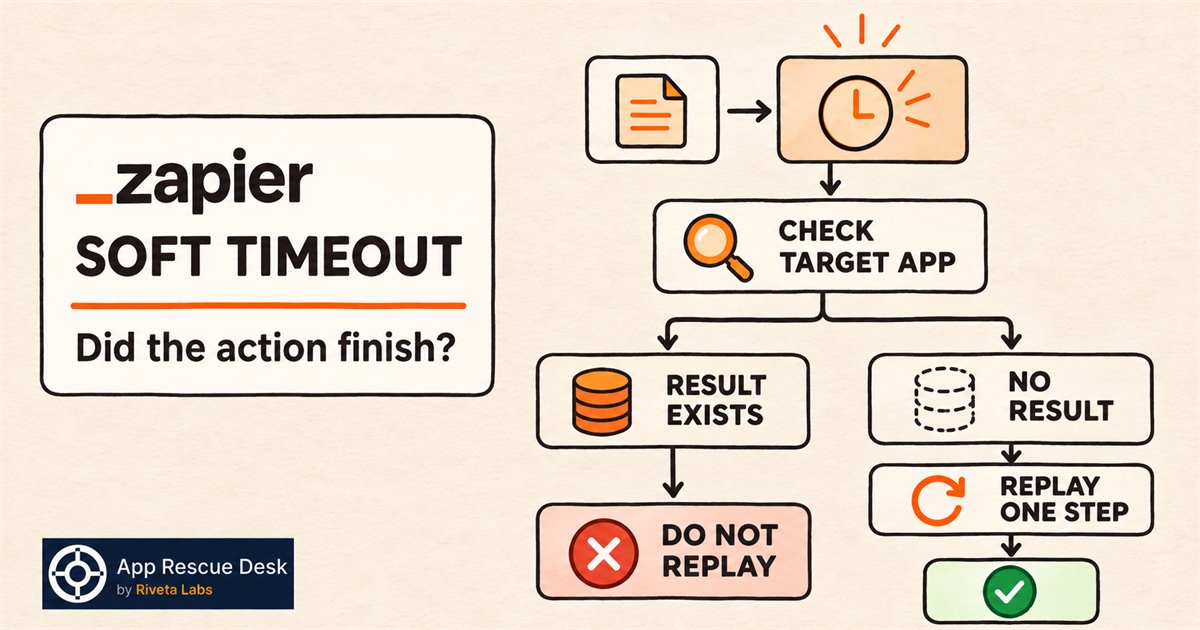
Check the target app before you replay the step. Search with the order or record ID from the failed run. If a matching result exists, another attempt can create a duplicate. If no result exists, wait for the timeout cause to clear before you replay the failed step.
Every platform claim below was checked against Zapier documentation on 2026-11-03.
What does “Soft timeout limit reached” mean in a Zapier run?
Zapier documents this error as a problem that occurs while Zapier processes Zap steps. Zapier recommends a manual replay after any relevant outage or temporary issue has cleared. Autoreplay does not retry steps that stop with this error.
The error confirms only that Zapier did not finish the step normally. It does not report whether the target app created the expected result.
If the target app accepted the request before Zapier stopped processing it, the result may already exist. Verify the result instead of assuming that the action failed.
How is a Zapier soft timeout different from “The app did not respond in time”?
Zapier documents these as separate errors.
A soft timeout means Zapier encountered a processing problem. The official recovery path is a manual replay, not Autoreplay.
The app did not respond in time means Zapier sent a request, but the connected app took too long to respond. Zapier lists large files, broad database searches, maintenance and app outages as possible causes. Autoreplay can attempt this second error when it is enabled.
Read the exact message on the first failed step. Do not use the same diagnosis for both timeout types.
If the run shows 401 Unauthorized instead, follow the checks for a Zapier 401 app connection failure. A connection error requires a different repair.
How do you check whether the timed-out Zapier action completed?
Use one affected production run with a reference ID you can find in the target app.
- Open Zap History.
- Filter by the affected Zap and incident time.
- Open one failed run.
- Select the first step with the timeout.
- Note its timestamp and reference ID.
- Open the target app.
- Search for that reference ID.
- Compare the matching result with the failed run.
Use a stable reference ID, such as an order ID or form submission ID. A customer name alone can match several records.
Classify the result before you change the Zap:
- No matching result: the step is a replay candidate after the timeout cause clears. The missing result does not identify that cause.
- One matching result: do not replay the step only to replace its error status.
- More than one result: stop replaying. Match each result to a run before you change anything.
- No reliable reference ID: the result is inconclusive. Do not replay historical runs in bulk.
When is one manual replay of a Zapier timeout reasonable?
Replay one failed step only when no matching result exists and the timeout cause has cleared.
Replay the failed step from Zap History. Then search the target app for the same reference ID.
Verify these results:
- The step no longer shows the timeout.
- The target app contains one expected result.
- The next Zap step received the expected data.
Do not use Replay entire Zap run as a shortcut. Zapier states that this option starts from the trigger and runs every step again, including steps that succeeded before. Replaying an errored workflow from Zap History skips the trigger and successful steps, then retries the steps that stopped with an error.
Why can replaying a timed-out Zapier action create duplicate data?
Zapier did not record a normal completion, but the target app may still contain the result.
A second attempt can send another email, add another CRM contact or create another invoice. Whether the target app blocks a duplicate depends on its rules and the reference ID in the request.
Before replaying several runs, compare each run with the target app. Separate missing results from completed and unclear results. Replay only the group you can verify as missing.
If a replay has already written a second record, trace which Zap run created each duplicate record before you delete either copy.
When does a Zapier soft timeout need a wider repair?
A single timeout can come from a temporary Zapier or app issue. One verified replay can close that incident.
The problem needs a wider diagnosis when:
- the same action times out on every run;
- large files or broad searches make the request slow;
- some results exist in the target app and others are missing;
- repeated attempts have already created duplicates;
- several Zaps call the same affected app or endpoint;
- customer orders, bookings or invoices need reconciliation.
This work requires a defined incident window, a comparison between Zap History and the target app, and a replay plan that does not repeat completed actions.
If the reconciliation touches customer orders, bookings or invoices, our Zapier fix service compares Zap History with the target app and defines the replay boundary before anything is retried.
Frequently asked questions about Zapier soft timeouts
Does “Soft timeout limit reached” mean the Zapier action failed completely?
No. The message means Zapier did not finish the step normally. Check the target app before deciding whether the action completed.
Will Zapier Autoreplay retry a “Soft timeout limit reached” step?
No. Zapier states that Autoreplay does not replay steps with this error. You can use a manual replay after you check the target app and any relevant outage has cleared.
Is it safe to replay every Zapier run with a soft timeout?
Not without checking the target app. Some actions may have completed before the timeout appeared. Replaying them can create duplicate messages, records or invoices.
What proves that a Zapier soft timeout is resolved?
One controlled run must complete without the timeout, and the target app must contain one correct result. A successful step status without the expected result is not enough.