Lovable says the fix is complete, but a customer still cannot sign in. The “Try to fix” control addresses a failed build; a successful build does not confirm that login, checkout, or data loading works. Separate the build error from the failed customer action before you spend another fix or change more code.
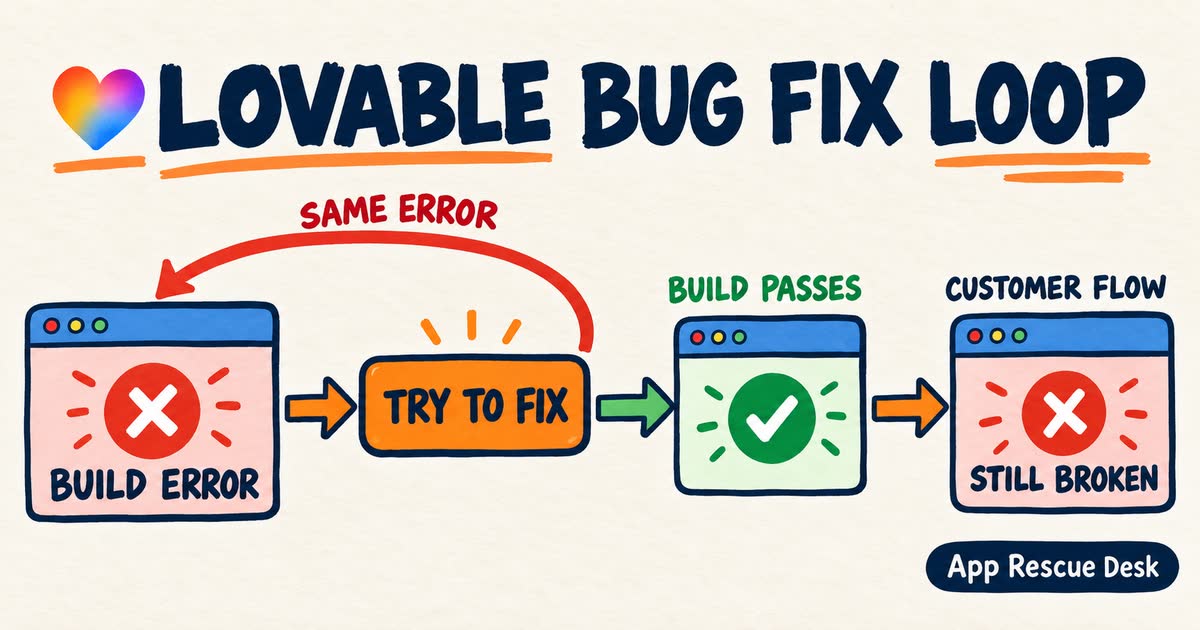
If the same build error returns, preserve the error and inspect the version change. If the build passes, reproduce one customer action and trace its first failed request. That distinction breaks the Lovable fix loop faster than another broad prompt. We start every investigation of Lovable app bugs and code problems that survive several prompts with that split.
Every platform claim below was checked against vendor documentation on 2026-10-21. App Rescue Desk is independent and is not affiliated with Lovable, Supabase, GitHub, or Google.
Lovable app bugs after “Try to fix”: what should you do first?
- Use “Try to fix” for the build error it reports. Stop retrying if the same error returns or the build passes while the customer flow still fails.
- Record one failing flow, its timestamp and timezone, the published version, and the last confirmed successful result.
- Use Lovable History to compare the last version that passed the same test with the first version that failed it.
- Match the browser request to the backend the app uses: Lovable Cloud, a connected Supabase project, or an external provider.
- Apply one constrained change, then rerun the original flow and one adjacent regression check.
Lovable app not working: which symptom do you have?
Some symptoms already point to one layer of the app. If yours matches a row below, start with that guide before you send another prompt.
| Symptom in the published app | Likely layer | Guide |
|---|---|---|
A Supabase request returns 401 with Invalid API key |
Supabase project URL and key in the live build | Invalid API key after publish |
Users keep getting logged out (JWT expired, Invalid Refresh Token) |
Session refresh and session storage | Session-refresh checks for logged-out users |
File upload fails with 403 or a row-level security message |
Storage policies on storage.objects |
Lovable Storage upload 403 checks |
Sign-up says User already registered |
Supabase Auth user and the app’s profile records | User already registered checks |
| Blank screen after publish | Build configuration, JavaScript files or data loading | Blank screen after deploy diagnosis |
What does Lovable “Try to fix” repair?
Lovable shows “Try to fix” on the activity card when a build error occurs. The Publish dialog also blocks a release while the latest build fails and offers the same control. Lovable then scans the build logs and attempts a repair. It does not run an acceptance test for every login, payment, upload, or data query in the published app.
The current Lovable guidance for “Try to fix” says an account receives 10 free fixes shared across its workspaces, projects, and Security fixes. Each free fix becomes available again 24 hours after use. Further fixes count as standard build usage after all 10 are in use.
The allowance matters, but the larger risk is changing working code while a customer-facing failure remains undefined. If the build succeeds and the app still behaves incorrectly, move from automatic build repair to a controlled investigation.
Why does Lovable “Try to fix” keep returning to the same error?
“Try to fix” can return to the same build error when the underlying cause remains. A prompt such as fix login creates a different loop: it describes an outcome but does not identify the failed request or responsible component. Login can fail before submission, at the authentication service, during a profile query, or after a redirect. A broad repair can change several of those boundaries while only one is known to be defective. If Google sign-in stops at Error 400: redirect_uri_mismatch after publish, check the Google callback URL behind redirect_uri_mismatch before another prompt.
The same problem appears when the visible symptom changes after each prompt. A repaired form followed by an empty dashboard does not prove that the original bug moved. The change may have affected session handling, routing, query conditions, shared state, or configuration used by both screens. Treat each explanation as a hypothesis until a request, log, setting, or diff supports it.
Lovable documents that each change it makes creates a version. The History panel identifies the published version and shows the files and lines changed in a version through View code changes. Use that version-history evidence to define the investigation window before requesting another implementation.
Treat these as stop signals:
- Repeating the same instruction produces a different failure.
- A proposed fix changes files outside the named workflow without explaining why.
- Preview and the published app produce different results with the same controlled input.
- The result differs between controlled accounts or roles.
- A proposed fix disables authentication or weakens row-level security.
- One change combines a schema migration, dependency upgrade, and unrelated UI refactor.
- Nobody can state the production check that will prove the repair is complete.
What evidence should you save before changing a Lovable app again?
Start with one user action. Do not investigate the app is broken as a single defect.
- Record the exact domain and starting page.
- Record whether you tested the published app, a preview, or both.
- Record the controlled account and role without exposing credentials.
- List each action and non-sensitive input before the failure.
- State the expected final result.
- Record the actual result and visible error text.
- Record the timestamp and timezone.
- Record the version carrying the Published badge.
- Record the last successful time and the last known working version, if verified with the same test.
Use a test account that you own or are authorized to use. Do not reproduce the failure with another customer’s account or expose customer records in screenshots.
Next, open Lovable History. Identify the published version and the last version known to pass the exact failing flow. If an older version was never tested against that flow, label it earlier, not working. Use View code changes on the versions inside the investigation window. Record the changed files and lines.
A code diff cannot establish the value of a deployed secret, provider setting, or database state. Record those separately when relevant, but record names or identifiers rather than secret values. To keep that record current before the next incident, use the post-launch maintenance checklist for a Lovable app.
If the failure follows a provider security notice, separate the app stack from the external service before changing Lovable code. The PHP2Shell scope check for a published Lovable app shows how to identify a WordPress, Laravel or custom PHP dependency and who owns its update.
Do not revert automatically. Lovable states that a version revert restores project code and redeploys matching Edge Functions but does not roll back database data. Earlier code can therefore be incompatible with later migrations or data changes.
If Git sync is active, confirm the active branch and sync status before using repository commits as evidence. Lovable’s GitHub integration documentation says the sync-status card shows whether Lovable and GitHub are on the same commit. It also states that Lovable syncs one active branch at a time. Do not assume a commit from another branch represents the published Lovable version. Use the Published badge to identify the live Lovable state.
How do you match a failed Lovable app request to the correct logs?
Open the published app in Chrome DevTools. Select Network, enable Preserve log, clear the existing entries, and reproduce the flow once. Chrome documents that Preserve log retains requests across page loads, which is useful for redirects and multi-page flows.
Record the first failed or unexpected request:
- method and URL path;
- HTTP status or the browser’s network-error text;
- redacted request body, if relevant;
- redacted response body, if available;
- request start time and duration;
- initiator file or stack, if available;
- redirect chain, if relevant;
- request, trace, or correlation ID, when present.
Also record the first relevant Console exception and its stack. Later errors may be consequences of that first observable failure.
Chrome can export a sanitized HAR that omits headers such as Cookie, Set-Cookie, and Authorization. Sanitized does not mean safe to share without review. URLs, query parameters, request bodies, response bodies, and other headers can still contain personal, confidential, or security-sensitive data.
Then find the corresponding backend event. Use the same timestamp and timezone, method, path, status, function name, and request ID where available. A user ID is useful only when the selected log type records or supports filtering by it.
| App boundary | Evidence to inspect | Decision it supports |
|---|---|---|
| Browser code | First relevant Console exception and stack | Whether execution stopped before the app sent a request |
| HTTP request | Method, path, status or network error, response, and initiator | Whether the request failed before a response, was rejected, failed server-side, or returned an unexpected success |
| Lovable version | Last-confirmed-good and first-confirmed-bad diffs | Which code changes entered the verified investigation window |
| Lovable Cloud | Relevant server, function, edge, authentication, PostgreSQL, Realtime, or Storage records | Whether the selected backend service received or processed the action |
| Connected Supabase project | API Gateway, Auth, Postgres, PostgREST, Storage, Realtime, or Edge Function records | Whether the intended project received the request and which service handled it |
| External provider | Matching event or request ID, endpoint, environment, and delivery result | Whether that provider received or completed the requested operation |
| Final state | Authorized read of the affected record or provider event | Whether the expected business result exists after the response |
For a Lovable Cloud project, More → Cloud → Logs opens the built-in logs. The Lovable Logs reference documents separate log types and states that the view does not stream live. Set the time interval and status filter. Select the relevant log type, reproduce the issue, and use Refresh before concluding that no record exists.
For a connected Supabase project, Logs in Studio supports a time range, log-type selection, text search, and filters for status, method, pathname, and supported user identifiers. With no explicit log-type selection, Logs queries its documented default set. Selecting log types replaces that set. An empty result does not prove that no request occurred until you confirm the project, time range, timezone, and relevant log type.
If the visible message is Edge Function returned a non-2xx status code, follow the status-specific Edge Function investigation. That wrapper message alone does not distinguish an authentication rejection, missing deployment, application error, upstream-provider failure, or timeout.
How do you classify a failure in a published Lovable app?
Reproduce one controlled flow on the published app
|
+-- No request for the action appears
|   +-- Inspect the first Console error, event handler, route, and client state.
|
+-- A request appears
    |
    +-- No HTTP response is recorded
    |   +-- Record the browser's failure reason and inspect the target URL,
    |       deployed route, connectivity, and any Console-reported CORS failure.
    |
    +-- 400 or 422
    |   +-- Read the response and compare the sent payload with the expected contract.
    |
    +-- 401 or 403
    |   +-- Read the response and matching auth or service log before changing
    |       sessions, authentication, authorization, or access policies.
    |
    +-- 404
    |   +-- Confirm the URL, method, deployed route or function, and target project.
    |
    +-- 429
    |   +-- Identify which service returned the limit and which request pattern
    |       triggered it before retrying.
    |
    +-- 500 or another 5xx response
    |   +-- Match the request to the responsible server or function log, then inspect
    |       any database or provider call made by that execution.
    |
    +-- 2xx but the result is wrong
        +-- Inspect the response body, expected data write or provider event,
            redirect, and client state update.
After classifying the request, locate the version boundary:
Can you name versions that passed and failed the same test?
|
+-- Yes
|   +-- Compare the last confirmed pass with the first confirmed failure.
|
+-- No
    +-- Inspect History snapshots from newest to oldest.
        Use a controlled, non-destructive check until the boundary is known.
Do not run a payment, send a customer message, or trigger another irreversible action from historical previews. Use test data and a non-destructive check where possible. Otherwise, escalate before reproducing.
A timestamp match supports a hypothesis but does not prove causation. A relevant code or configuration change combined with the corresponding changed request or log is stronger evidence. A 2xx response means the responding component reported success for that request. It does not prove that every later database write, provider action, redirect, or client update completed.
Use controlled comparisons to separate similar causes:
- Compare the published domain and preview with the same safe test data and starting state.
- Compare a fresh session with an existing session.
- Compare one affected role with one unaffected role using accounts you control.
- Compare the backend URL or project identifier in the deployed request with the intended production target.
- Compare the first-bad diff with the request initiator or first Console stack.
- Match one browser timestamp or request ID to one backend event.
Change one variable per test. Otherwise, a passing result will not identify which difference mattered.
How do you turn Lovable app evidence into a constrained repair prompt?
Use Chat or Plan mode for investigation before Build mode. Lovable documents that Chat mode discusses changes without modifying code and Plan mode can inspect files and logs before producing a plan. Do not approve an implementation until the plan names the evidence-supported cause, affected files or settings, and verification steps.
A useful investigation prompt looks like this:
Do not modify code or configuration.

Investigate this published-app regression:
- Domain and starting page: [location]
- Flow: [exact steps]
- Controlled account role: [role]
- Expected result: [result]
- Actual result: [result]
- Request: [method, path, status or network error]
- First relevant error: [redacted error]
- Matching backend record: [redacted ID or summary, if found]
- Last confirmed working version: [version or unknown]
- First confirmed broken version: [version or unknown]

Compare only the confirmed version boundary first. Identify which changed file or setting
can explain the recorded request, error, or backend event. List unsupported alternatives
separately. Propose the smallest reversible fix and the exact tests required. Do not change
authentication, RLS, database schema, dependencies, secrets, or unrelated components
without direct evidence.
Once the cause is supported, make the implementation prompt narrower:
Change only [named files or setting].
Preserve [named behavior and interfaces].
Do not add dependencies or migrations.
Run the original reproduction steps with controlled test data.
Also test [one adjacent workflow affected by the same code].
Show the final diff and report each test result separately.
If a test cannot run, state the missing prerequisite instead of claiming it passed.
Lovable documents that its browser testing can observe Console and Network activity and is intended for user-visible or multi-step flows. Specify the starting state, permitted test account or role, actions, and expected final state. Do not paste passwords, session tokens, or production secrets into the prompt or evidence package.
Which repair attempts can remove safeguards or destroy Lovable app evidence?
Do not widen the repair simply because a narrow attempt failed.
- Do not disable authentication to clear a
401. - Do not make an RLS policy public to clear a
403. - Do not rotate every secret when one request fails.
- Do not delete and recreate a function before preserving its relevant logs and configuration.
- Do not rebuild database tables from the current UI.
- Do not combine a dependency upgrade with the bug fix.
- Do not retry a payment until you check the provider state and the risk of a duplicate charge.
- Do not restore a database backup over production as a test.
- Do not revert code before checking later migrations and writes.
These actions can hide the original cause or create a larger incident. A temporary success after removing a security check does not establish a safe repair.
A safe self-service fix has a narrow evidence chain. For example, suppose the first broken version changes a function name. The browser requests the changed name, while the deployed function list contains only the original name. Correcting that single reference is bounded and reversible. The same evidence does not support rewriting the entire function.
When should you stop fixing a Lovable app yourself?
Stop self-service changes when:
- a payment or other irreversible provider action may have completed despite an error;
- customer data may be missing, duplicated, or exposed;
- the repair requires an RLS or authentication redesign;
- a code rollback may conflict with later migrations or data writes;
- a browser request cannot be matched after verifying the project, time range, timezone, and log type;
- several services changed inside the confirmed investigation window;
- the first relevant error or required logs are unavailable;
- the proposed fix changes unrelated workflows;
- no controlled production test can prove completion.
Prepare this evidence package:
- Production URL and affected flow.
- Expected and actual results.
- Timestamp and timezone.
- Last successful time.
- Published Lovable version and, if verified, corresponding Git commit.
- Last-confirmed-good and first-confirmed-bad diffs.
- Redacted first relevant Console error.
- Redacted failed request and response.
- Matching backend or provider record, or the verified search conditions that produced no match.
- Changes already attempted and their results.
- Known data, message, or payment side effects.
- One objective completion test.
Do not include passwords, session cookies, API keys, authorization headers, full payment payloads, customer exports, or unreviewed HAR files.
If the evidence shows that the repair has become an ownership or architecture problem, compare what a Lovable fix costs versus a migration before authorizing a rebuild. One frustrating regression does not by itself prove that migration is required.
If one published workflow worked before and the evidence now spans several systems, review what App Rescue Desk fixes before sharing the redacted package.
Frequently asked questions about the Lovable “Try to fix” loop
Does Lovable “Try to fix” repair a published app that still fails for customers?
“Try to fix” attempts to repair a build error. A successful build does not test every published login, checkout, upload, or data query. If the build passes but the customer action fails, reproduce that action and inspect its first failed request.
Why does Lovable “Try to fix” keep returning to the same build error?
The attempted change did not remove the cause of the build failure, or it introduced another failure in the same path. Save the exact error and compare the changed version with the last version that built successfully before running another repair. If the same build error also appears when you run an exported copy on your own computer, work through the checklist for exported Lovable code that won’t run locally.
Does Lovable “Try to fix” use credits?
Lovable currently provides 10 free fixes per account, shared across all workspaces, projects, and Security fixes. Each used fix becomes available again after 24 hours. Further attempts count as standard build usage while all 10 are unavailable.
Should you revert a Lovable app when “Try to fix” makes another workflow fail?
Do not revert automatically. A Lovable version revert restores project code and redeploys matching Edge Functions, but it does not roll back database data. Check later migrations and production writes before restoring earlier code.
What evidence should you save when Lovable “Try to fix” is not enough?
Save the published URL, affected action, expected result, visible error, timestamp and timezone, published version, last successful result, first relevant browser request, and matching backend record. Remove credentials, tokens, cookies, customer records, and unreviewed request bodies.
When should you stop trying to fix a Lovable app yourself?
Stop when the failure can affect payments or customer data, requires changes to authentication or RLS, crosses several systems, or cannot be verified with a controlled test. Preserve the evidence before another prompt, revert, retry, or production change.